
Download AppLocker – Secure Password Protection for Mac Apps
Overview
AppLocker is a lightweight, purpose‑built utility that lets Mac users password‑protect individual applications rather than the entire system. In environments where family members, coworkers, or guests share a single computer, sensitive programs—such as finance tools, private messaging clients, or development IDEs—can remain hidden behind a user‑defined password. The app’s premise is simple: you set one strong password, select the apps you want to lock, and AppLocker does the rest. No complex policies, no enterprise‑grade server, just an elegant, single‑click solution for everyday privacy concerns. While it does not replace full‑disk encryption, it fills a niche that most macOS apps ignore, offering a quick way to keep personal data out of the hands of casual observers.
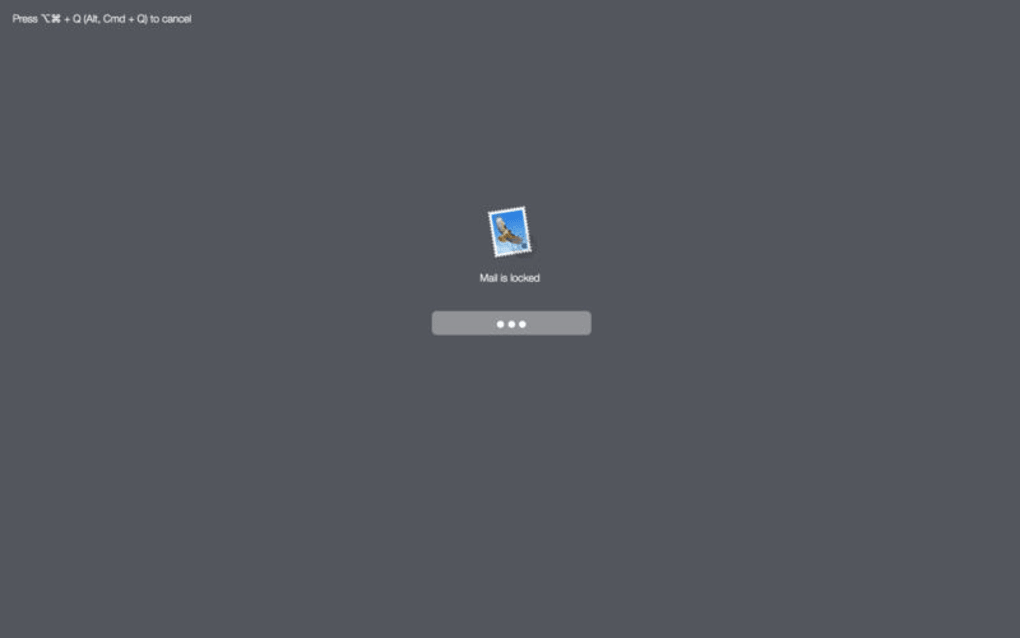
Because AppLocker operates at the application level, it does not interfere with macOS’s native security features such as Gatekeeper or FileVault. Instead, it creates a wrapper that prompts for the password each time a protected app is launched. If the password is entered correctly, the app opens normally; otherwise, the launch is blocked and the user receives a discreet warning. This approach keeps the user experience smooth while adding an extra layer of protection that is easy to manage from the system menu bar.
AppLocker is free to download, with optional in‑app purchases for advanced features like multiple password profiles and automatic lock after inactivity. The software receives regular updates to stay compatible with the latest macOS releases, ensuring that users can continue to protect their apps without worrying about compatibility breakage. Below, we dive deeper into the core features, installation steps, system requirements, and the real‑world pros and cons reported by users.
Key Features & Benefits
- Selective App Locking: Choose any installed macOS application and protect it with a password, without locking the whole computer.
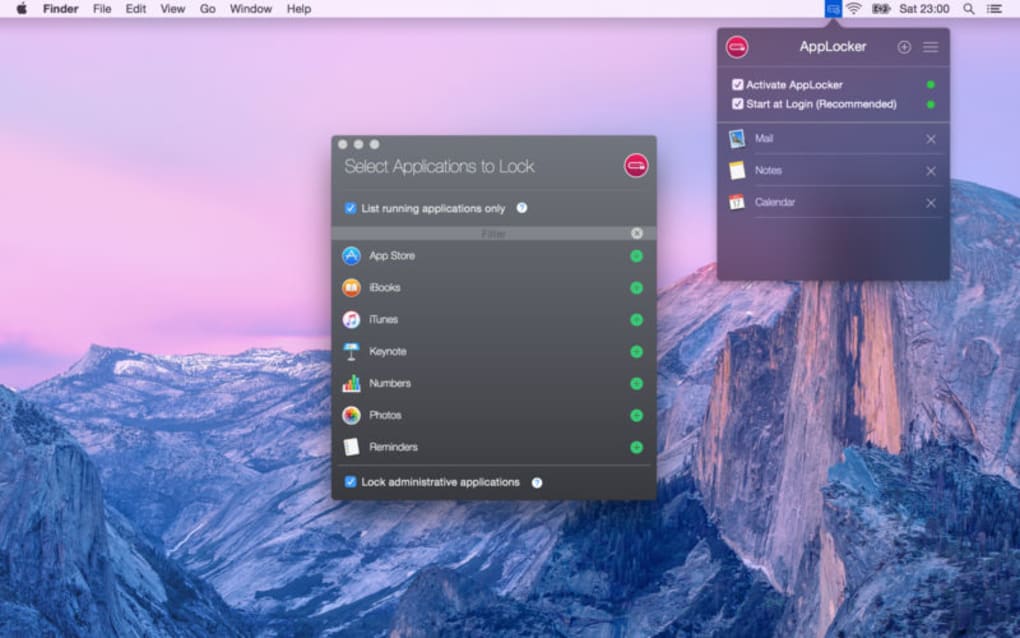
- One‑Click Activation: After setting your master password, simply tick checkboxes next to apps you want to secure; changes take effect instantly.
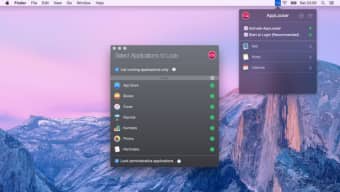
- Menu‑Bar Control Panel: Access all settings from a compact menu‑bar icon, allowing you to enable/disable locks on the fly.
- Secure Password Storage: Passwords are encrypted locally using the macOS Keychain, ensuring that no plaintext credentials are ever written to disk.
- Auto‑Lock Timer: Optional timer locks protected apps after a period of inactivity, adding a safety net against accidental exposure.
- Multiple Profiles (Premium): Create separate password sets for different users or contexts, useful for families or shared workstations.
- Seamless macOS Integration: Works alongside Finder, Spotlight, and Launchpad without altering system files or requiring admin rights.
- Regular Updates: Developers push security patches and compatibility updates for new macOS versions at least quarterly.
Beyond the feature list, AppLocker offers tangible benefits that resonate with everyday users. First, it eliminates the need to share your macOS password just to let someone borrow your computer for a quick task. Second, it provides peace of mind for freelancers handling confidential client data on a personal device. Third, the minimal performance impact means that locked apps launch just as quickly as before—once the password is entered—so productivity isn’t sacrificed for security.
For families, the tool can prevent children from opening adult‑oriented or gambling apps without supervision. In a small office setting, coworkers can keep proprietary design tools or internal communication apps hidden from casual visitors. The flexibility of selective locking—combined with an intuitive UI—makes AppLocker a versatile addition to any Mac user’s privacy toolkit.
Installation, Usage & Compatibility
Step‑by‑Step Installation
- Visit the official AppLocker website or the Mac App Store and click the Download button.
- Once the
.dmgfile is downloaded, open it and drag the AppLocker icon into your/Applicationsfolder. - Launch AppLocker for the first time. macOS will ask you to confirm that you want to open an app from an identified developer—click Open.
- During the initial setup wizard, you’ll be prompted to create a master password. Choose a strong, unique phrase and confirm it.
- After the password is set, the app adds an icon to the menu bar. Click the icon to open the Protected Apps list.
- Check the boxes next to any applications you wish to protect. Changes are saved automatically; no additional “Apply” button is required.
AppLocker does not require administrative privileges after the initial installation, which means you can add or remove protected apps without entering your Mac’s admin password each time. The first launch may request access to the Keychain to store your password securely—grant this permission to ensure encryption works as intended.
How to Use AppLocker Daily
When you or a guest attempts to open a locked application, a modal window appears asking for the master password. If the password is correct, the app launches normally. If the password is wrong, the launch is aborted, and a brief notification appears in the menu bar. For premium users, the auto‑lock timer can be set to lock the app after a configurable period of inactivity (e.g., 5 minutes). This feature is handy for preventing accidental exposure when you step away from your desk.
All settings—including which apps are locked, the auto‑lock interval, and whether multiple profiles are enabled—are accessible via the menu‑bar icon. A right‑click on the icon brings up a quick‑toggle list, while a left‑click opens the full preferences window where you can adjust advanced options, view the encrypted password entry, or export a backup of your configuration.
System Requirements (itemprop="operatingSystem")
AppLocker is built specifically for macOS and supports the following versions:
- macOS 11 (Big Sur) and later
- Apple Silicon (M1, M2, etc.) and Intel‑based Macs
- Requires at least 200 MB of free disk space for installation and configuration files
- Works alongside standard macOS security features (Gatekeeper, FileVault, SIP)
If you are running an older version of macOS (e.g., Catalina or earlier), the developer recommends upgrading to ensure full compatibility and to benefit from the latest security patches. The app runs efficiently on both high‑performance workstations and older MacBooks, with a typical memory footprint of under 50 MB.
Pros, Cons & Frequently Asked Questions
Pros
- Simple, intuitive UI—no steep learning curve.
- Selective app locking saves time compared to full‑system passwords.
- Encrypted password storage via macOS Keychain.
- Low system resource usage; does not slow down the Mac.
- Regular updates keep it compatible with the latest macOS releases.
Cons
- Relies on a single master password; forgetting it locks you out of all protected apps.
- Not suitable for high‑security environments where multi‑factor authentication is required.
- Some users report occasional conflicts with apps that use custom launch scripts.
- Premium features (multiple profiles, auto‑lock timer) are behind a paywall.
FAQ (itemscope itemtype="https://schema.org/FAQPage")
Can I use AppLocker on Windows or Linux?
No. AppLocker is currently designed exclusively for macOS. The developer has indicated interest in a cross‑platform version, but no official release date has been announced.
What happens if I forget my master password?
Since the password is stored encrypted in the macOS Keychain, there is no backdoor recovery. You will need to reset AppLocker, which removes all protected‑app settings. The app provides a clear “Reset” option in the preferences, but you will have to re‑configure your locked apps afterwards.
Does AppLocker affect app updates?
AppLocker does not interfere with the macOS App Store or third‑party update mechanisms. When an update is installed, the protection status is retained, and you will be prompted for the password the next time you launch the updated app.
Is the app safe from malware?
Yes. AppLocker is signed by a recognized Apple developer ID and undergoes regular security audits. The password is never transmitted over the internet, and all encryption occurs locally.
Can I protect apps that require root privileges?
AppLocker works with most user‑level applications. For apps that launch with elevated privileges, you may need to grant additional permissions during the first launch. In rare cases, certain system utilities may not be lockable due to macOS security constraints.
Conclusion & Call to Action
AppLocker fills a unique gap in the macOS ecosystem by offering a straightforward way to password‑protect individual applications without imposing a full‑system lockout. For anyone who shares their Mac with family members, coworkers, or occasional guests, the utility provides a lightweight, secure method to keep sensitive tools out of unintended hands. While the reliance on a single master password presents a single point of failure, the trade‑off is an easy‑to‑use experience that most users will find worthwhile. Regular updates and native macOS integration further reinforce its reliability.
If you value privacy and need a quick solution to keep specific apps hidden, download AppLocker today from the official website or the Mac App Store. Set a strong password, choose the apps you want to shield, and enjoy the confidence that comes with selective protection. For power users, consider the premium upgrade to unlock multiple password profiles and an auto‑lock timer, ensuring your workflow stays both secure and efficient.
Click here to download AppLocker and start safeguarding your Mac applications instantly.
AppLocker delivers exactly what it promises—simple, reliable app‑level password protection for macOS. The UI is clean, the performance impact is negligible, and the integration with the Keychain ensures credentials stay encrypted. The main drawback is the single password model, which can be a risk if forgotten. Overall, it’s a solid tool for anyone needing extra privacy on a shared Mac.